
Family Map & Co-Pilot
Meet you at the picnic spot.
One of you has the picnic blanket. The other is still looking for parking. Open your family space to see the last location they chose to share and when it was updated.
In early testing. Sharing locations and routes needs a connected Homeberry Hub.
See how route suggestions work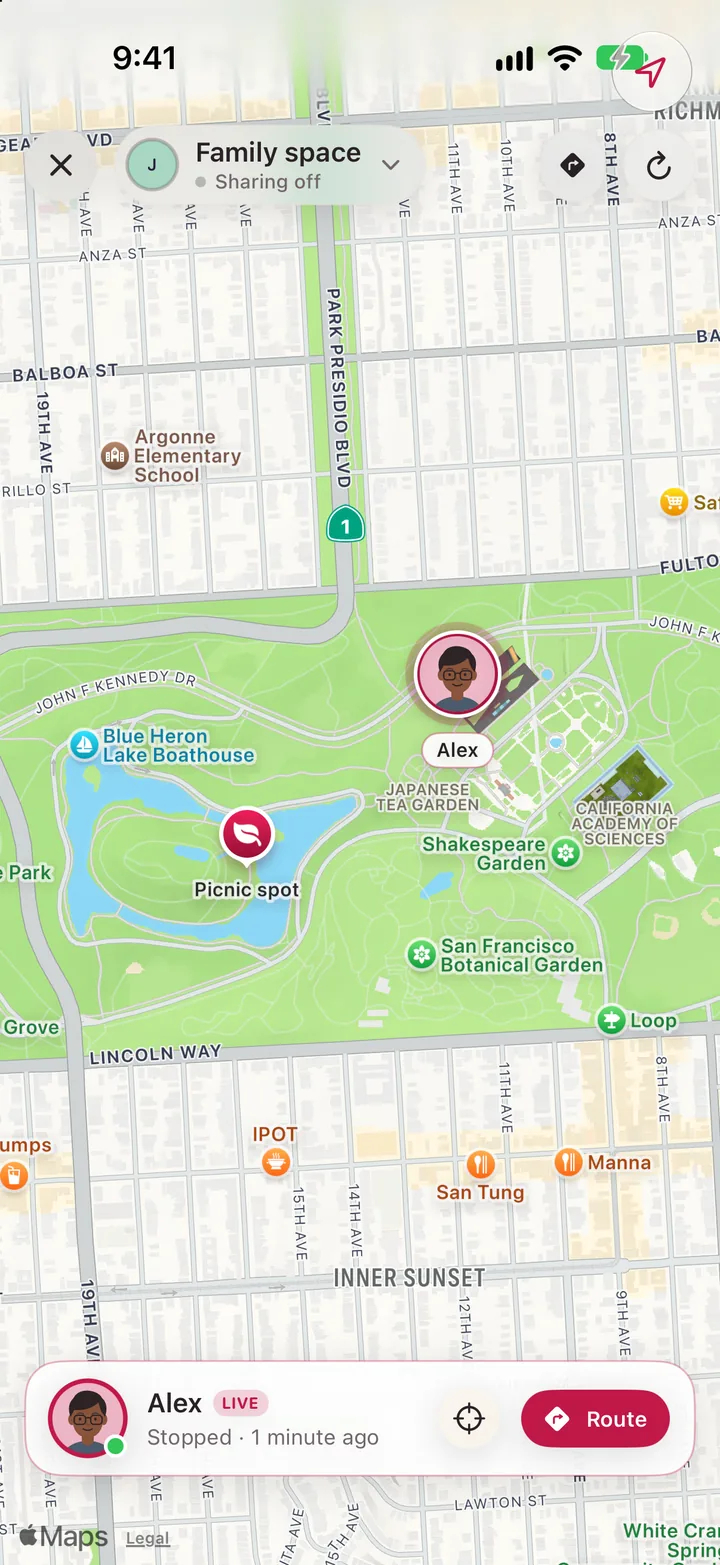
Apple Maps Co-Pilot
Help from the passenger seat. Or the kitchen.
Traffic is backing up and your partner has both hands on the wheel. You can look for another way to the park from your iPhone or iPad.
- Start from their pin.
Tap Route beside a recent location and search for a destination. Compare the travel times and alternatives Apple Maps finds.
- Send the suggestion.
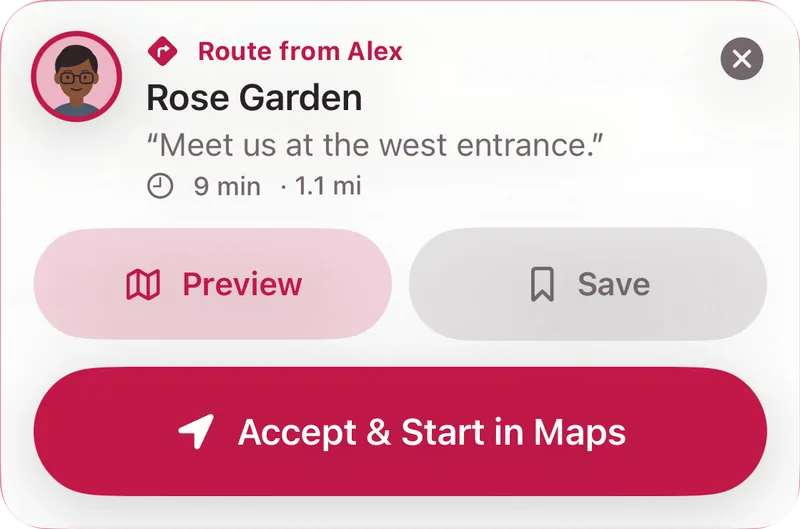
Add a stop or a short note, like “Meet us at the west entrance.” Your connected Hub delivers the encrypted suggestion to their device.
- They choose the way.
When it’s safe to look, they can preview the suggestion, save it for later, or open Apple Maps. Maps uses the destination and stops to give directions for the drive.
Location & privacy
A pin on your terms.
You can see a loved one’s shared pin while keeping your own location private. Everyone decides separately for each family space.
- How long does sharing last?
- Sharing starts off. On iPhone or iPad, choose one hour, four hours, or ongoing low-power updates. You can turn it off at any time in that space.
- Can I tell if someone arrived?
- Read the time beside their pin. Old pins expire. On iPhone and iPad, places you name on your device can help you recognize a nearby update. To check on an arrival, open the map. There are no automatic arrival alerts.
- Who can read a location?
- Homeberry encrypts the update for the linked family member before sending it. Your Hub holds the latest encrypted update. Apple Maps provides the map, destination search, and route estimates.
- Can I check from my Mac?
- Yes. Open Family Map in the Mac app to see recent shared pins, turn on traffic, or open a route someone sent you.